
Operate Live and take manual action safely
Enable and supervise Live trading, pause deliberately, sell positions, realize portfolio cash, and verify every provider result.
Live operation is the part of TraderLobby where intent becomes real exchange activity. This guide shows you how to enter Live deliberately, supervise automation, pause the correct layer, sell one position or attempt to realize portfolio cash, and verify what actually happened before you act again.
What you will be able to do
- Recognize when the account is genuinely ready for Live order execution.
- Tell the workspace selector, one-strategy decision engine, and account-wide Trading control apart.
- Monitor strategies, candidates, positions, cash, fills, fees, and warnings as one operating picture.
- Pause new automated activity without assuming that existing holdings were sold.
- Review and submit a single-position sale or a portfolio cash-realization attempt.
- Resolve stale quotes, rejected evaluations, timeouts, partial results, and uncertain outcomes safely.
Use the same operating loop every time
A safe Live session is a loop, not a single click. Establish context, observe the whole account, act once, verify the provider result, and resolve uncertainty before beginning another action.
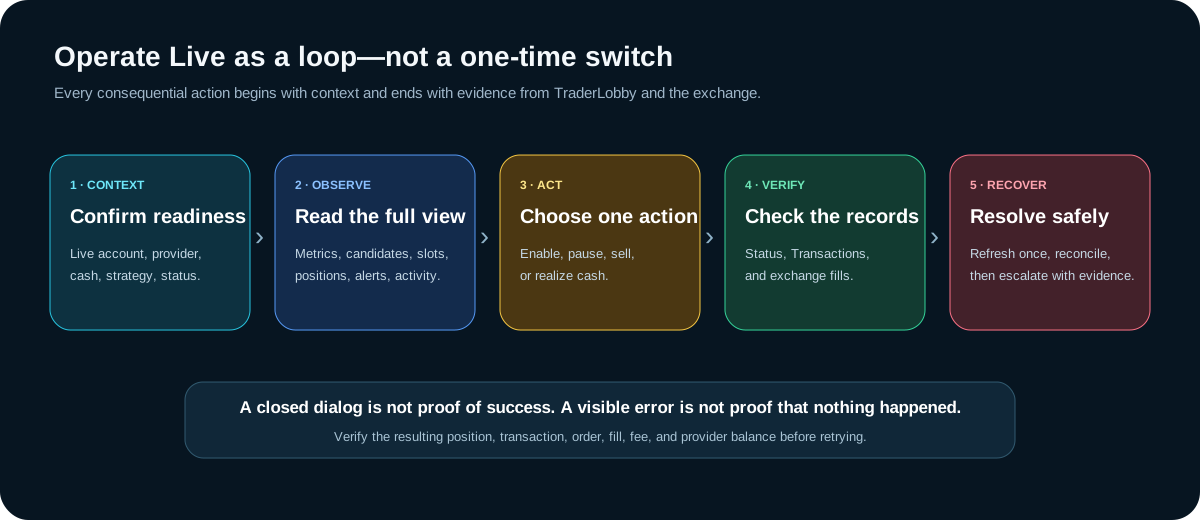
- Confirm context.
Read Live, the selected exchange account, trading currency, market source, security state, and global Trading state.
- Observe before acting.
Review cash, open positions, strategy capacity, candidates, recent fills, fees, pending states, and warnings together.
- Choose one deliberate action.
Enable, pause, resume, sell, or refresh. Avoid changing several controls at once when you need to understand the result.
- Verify the consequence.
Use TraderLobby Transactions and the exchange’s order and fill history. For real activity, the exchange is the final record.
- Recover before retrying.
If the outcome is pending or unknown, refresh state and reconcile it. Do not convert uncertainty into a duplicate order.
Complete the Live readiness chain
A valid connection is necessary, but it is not the complete definition of Live-ready. Order execution depends on the entire chain below matching your intended account and action.
| Readiness layer | What good looks like | If it is missing |
|---|---|---|
| Account security | Your email is verified and the required sign-in protection is complete. | Finish the visible security requirement before attempting Live. |
| Exchange connection | The intended provider account is saved, valid, recognizable, and selected as the default Live account. | Open API Connections, validate it, and confirm the account label. |
| Order capability | The connection supports execution and its no-order permission check succeeds where required. | Review provider permissions and run Validate order permissions—no order placed. |
| Cash boundary | The maximum cash TraderLobby may use is deliberate, and Tradable cash is sufficient for the intended activity. | Review reported cash, reserve, currency, and budget before changing any limit. |
| Strategy access | You own or subscribe to the strategy version you intend to use. | Resolve access separately; connection validity does not grant strategy access. |
| Live configuration | The strategy has intentional Live slots, allocation, and an enabled decision engine. | Open its Live settings; Paper settings do not automatically configure Live. |
| Account-wide state | The Trading control says RUNNING and no circuit-breaker pause is active. | Investigate the reason before resuming or resetting. |
Enter Live without losing your place
- Finish your review in Paper.
Record the strategy, settings, limits, and behavior you observed. Paper results are simulation evidence, not a forecast.
- Select Live in the workspace control.
Wait for the page to load the Live provider and account context. Do not assume the Paper totals remain relevant.
- Read the Live context strip.
Confirm the provider, named account, cash figures, locked or reserved amount, Tradable cash, and API settings link.
- Inspect every visible warning.
Resolve missing default connection, incomplete security, permission, budget, or provider restrictions at their source.
- Open the intended strategy’s Live settings.
Review slots, allocation, mode, and decision-engine state again before saving.
- Verify the resulting card and global state.
Confirm the strategy shows the intended Live configuration and that account-wide Trading is in the state you expect.
Know which control you are changing
Three controls can look related because all of them influence what you see or what automation may do. Their scopes and consequences are different.
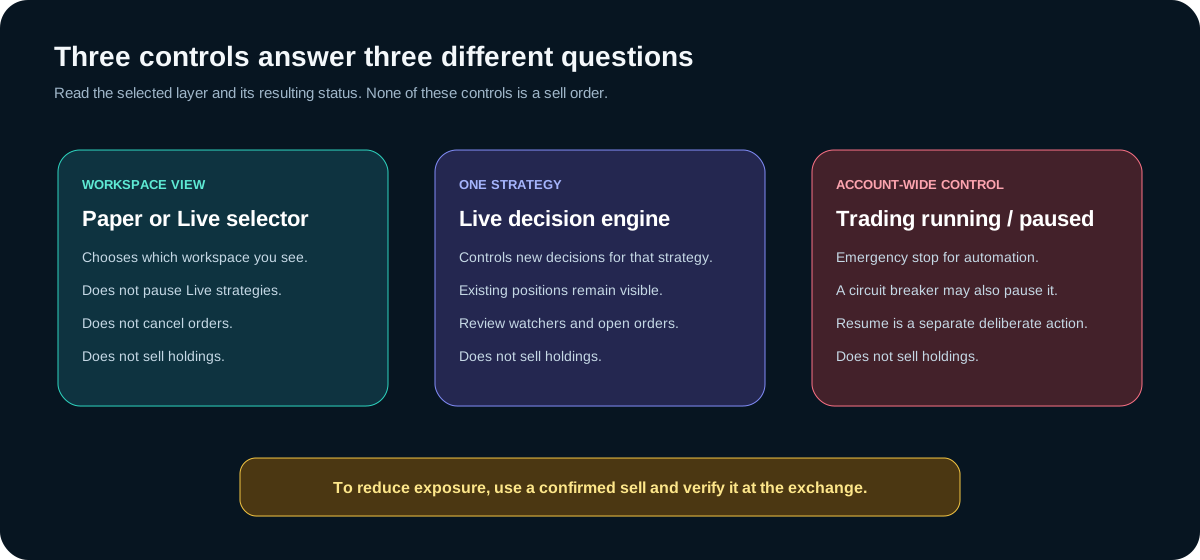
| Control | Scope | What it does | What it does not do |
|---|---|---|---|
| Paper / Live selector | What workspace you are viewing and configuring | Loads that workspace’s data and controls. | Switching to Paper does not pause Live automation. |
| Strategy decision engine | One strategy in one workspace | Allows or prevents new decisions for that configuration. | Disabling is not selling, cancelling access, or deleting history. |
| Trading RUNNING / Paused | Account-wide automation | Runs or pauses enabled strategies and applicable position watchers. | Pausing is not selling and does not erase orders or holdings. |
| Circuit-breaker pause | Account protection | Stops automation when the protective state is triggered. | It is not an instruction to reset immediately. |
| Exchange order controls | Provider account | Show accepted, open, cancelled, rejected, and filled order state. | TraderLobby cannot replace the exchange as the final record. |
Enable one Live strategy deliberately
Access, adding, configuration, and enablement are separate decisions. Work through them in order so you can explain exactly what changed.
- Confirm access and version.
Identify whether the strategy is owned, included, or subscribed, and read the version and available update information.
- Choose Live inside the settings dialog.
Do not rely only on the workspace you selected earlier; read the mode label where you are saving.
- Set position slots.
Use a small number that you can observe. A slot is strategy capacity, not a guaranteed position.
- Choose the capital-allocation method.
Review the displayed amount, percentage, preferred minimum, and remaining-cash behavior for the selected method.
- Enable the decision engine only when ready.
This permits new decisions for that strategy. It does not force an immediate order.
- Save once and verify.
Wait for the success or error message, then confirm mode, enabled state, slots, and allocation on the Live strategy card.
Read Live as an operating picture
The Trading workspace combines measurements with workflow state. Use the real app capture below to locate the regions, then read from account context down to individual positions.
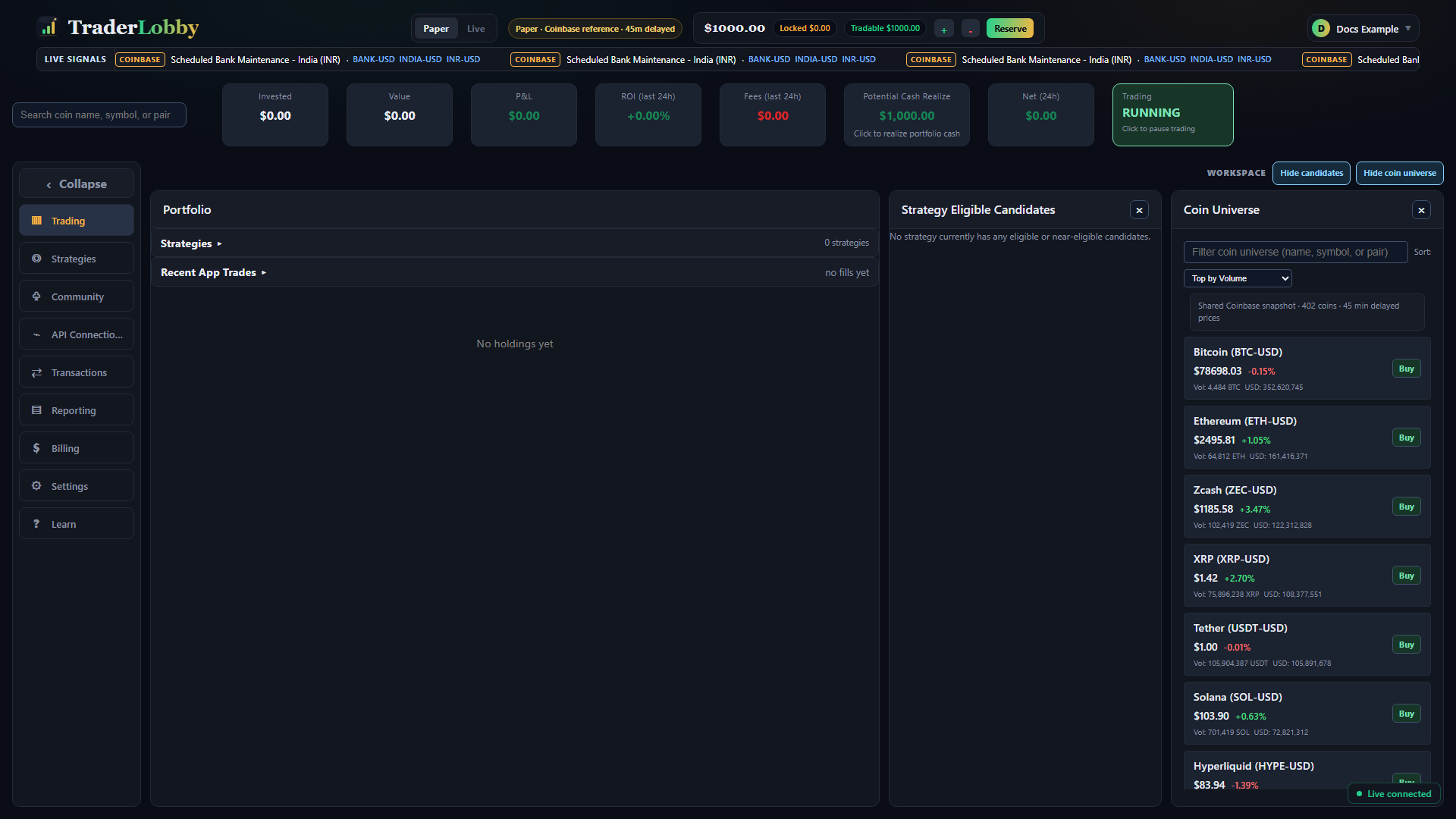
| Signal | Question it answers | Boundary |
|---|---|---|
| Invested and Value | What basis and current estimated value are attributed to open positions? | Value is not guaranteed sale proceeds. |
| Open P&L | How does current estimated value compare with recorded basis? | It can move and is not realized cash. |
| 24-hour metrics | What occurred in the displayed recent window? | Do not mix them with all-time or selected-period results. |
| Fees | What fees are recorded for the displayed window? | Provider reconciliation can affect timing. |
| Potential Cash Realize | What might cash look like if eligible app-attributed positions were sold? | It is an estimate before execution, spread, fees, and movement. |
| Strategy cards and slots | Which configurations can decide and how much capacity is in use? | Used capacity can include hidden dust or activity still reconciling. |
| Candidates | What are enabled strategies currently evaluating? | A candidate is not an order or a promised fill. |
| Positions and recent trades | What is held and what app-attributed activity was recorded? | Verify real outcomes at the exchange. |
Run a short supervision routine
- Confirm the account context.
Read Live, provider, account, currency, Tradable cash, and Trading state.
- Scan warnings and freshness.
Look for security, provider, permission, pending, synchronization, or circuit-breaker messages.
- Review strategy capacity.
Check enabled states, used slots, hidden dust, and whether candidates are waiting or blocked.
- Inspect positions and activity.
Look for quantity changes, recent fills, approaching exits, manual actions, and unexpected symbols.
- Verify consequential changes.
Reconcile orders, fills, prices, fees, and balances in Transactions and at the exchange.
Pause the correct scope
Use a strategy’s decision engine when you want to stop new decisions from that one configuration. Use the account-wide Trading control when you want to pause all enabled automation and applicable position watchers. Read the confirmation and resulting status.
If the app reports a circuit-breaker pause, preserve the reason and inspect recent activity, cash, provider state, and configured protections. Reset or resume only after you understand why the protection activated.
Viewing Paper does not stop Live
You can view Paper while Live strategies or position watchers remain active. The app may show a notice that Live automation is still running. Return to Live and use the explicit strategy or Trading control if stopping automation is your intent.
Sell one position by hand
A manual sale is a separate order workflow. It is appropriate when you intend to reduce or close a specific app-attributed position and have verified the symbol, quantity, and Live account.
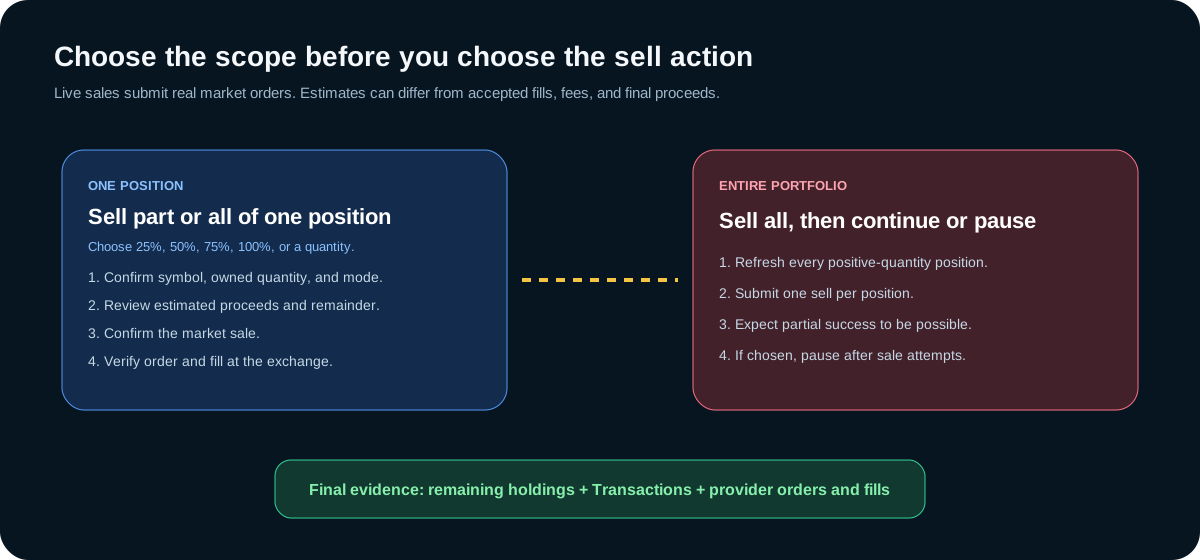
- Select the intended position.
Read the asset name, pair, owned quantity, strategy badge, estimated value, and selected workspace before choosing Sell.
- Choose the amount.
Select 25%, 50%, 75%, 100%, or enter a supported custom quantity. Confirm the expected remainder.
- Review the current estimate.
Read Owned, Market price, Position value, estimated proceeds, remaining quantity, and the Live market-order warning.
- Place the order once.
Use the final confirmation only after every label matches your intent. Avoid double-clicking or reopening immediately.
- Wait for a definitive result.
The request may be accepted, rejected, partially filled, filled, or temporarily uncertain. Do not infer the outcome from the dialog alone.
- Verify and reconcile.
Check Transactions and the exchange’s order and fill history, then allow balances and positions to refresh.
Understand the Live market-order estimate
The review uses a current executable estimate, but the final exchange result can differ because price moves, spread, liquidity, fees, minimum sizes, precision, and partial fills are determined during execution. The estimate helps you decide; it is not a guaranteed price or proceeds amount.
| Review value | Use it for | Do not assume |
|---|---|---|
| Owned | Confirming the reported quantity available to the position. | That a pending external order has already reconciled. |
| Market price | Understanding the current estimate context. | That every unit will fill at exactly that price. |
| Position value / proceeds | Judging the approximate size of the action. | That fees, spread, and movement are already final. |
| Remaining quantity | Checking whether the intended partial sale matches your plan. | That tiny residual amounts will always be independently tradable. |
Attempt to realize portfolio cash
Selecting Potential Cash Realize opens a portfolio-level review. TraderLobby refreshes eligible app-attributed positions, including positive-quantity dust, and prepares one sell request for each position. This is a sequence of individual provider outcomes—not one indivisible transaction.
- Review the refreshed portfolio.
Confirm the account, estimated cash, position list, and any dust or minimum-size limitations.
- Choose what happens to automation.
Sell and continue leaves the Trading state unchanged. Sell all and pause trading attempts the sales and then requests the account-wide pause.
- Submit once.
Each positive-quantity position is handled separately, so some requests can succeed while others fail.
- Read the result by symbol.
Record which assets sold, failed, or remain unresolved. Do not treat a summary total as proof that every position closed.
- Verify the pause separately.
If you chose the pause option, confirm Trading shows Paused. A pause attempt happens after sell attempts and can fail independently.
- Reconcile every position.
Use Transactions and the exchange to confirm accepted orders, fills, residual quantity, fees, and cash.
Verify requests, orders, fills, and balances separately
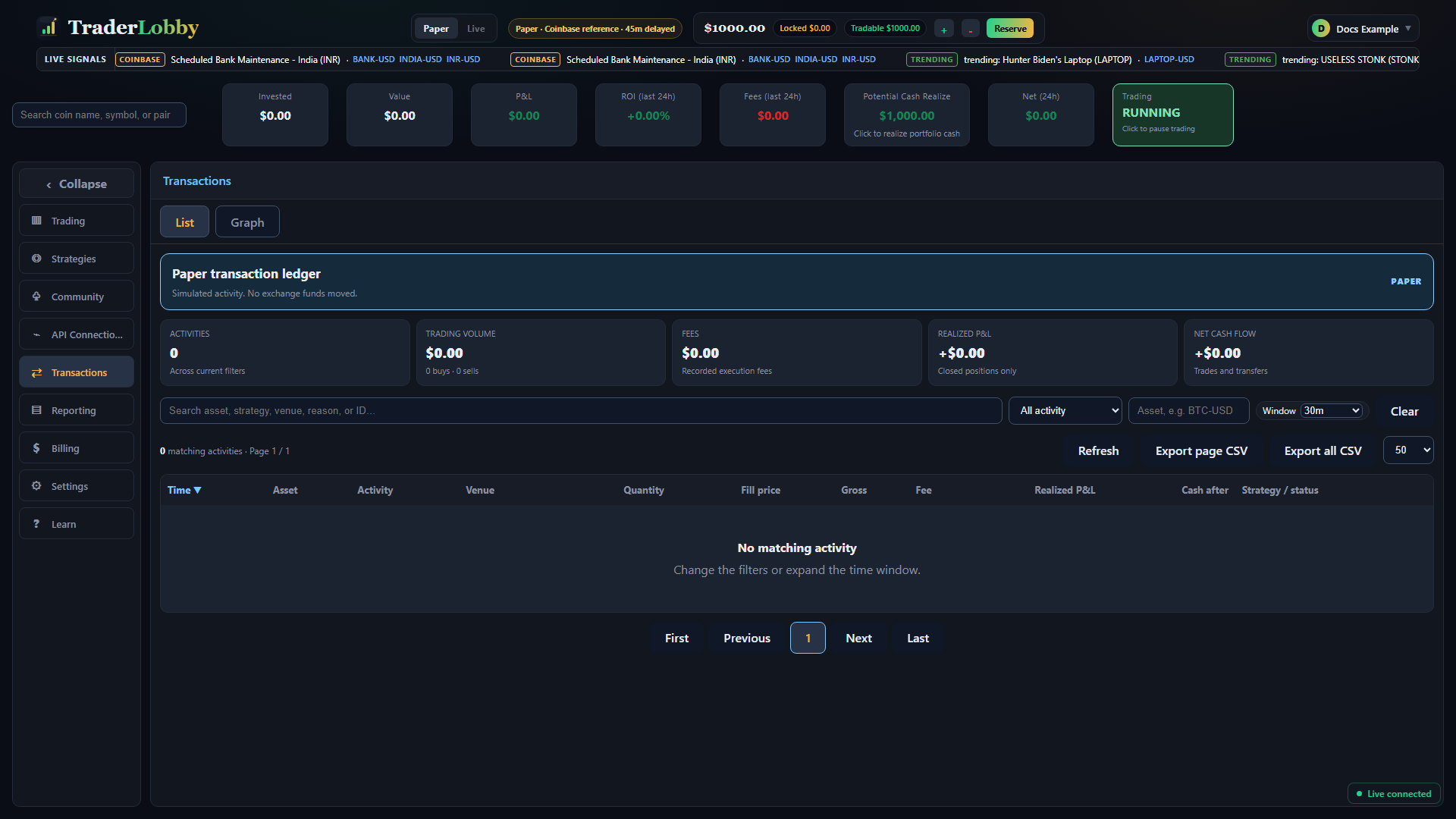
A request begins the workflow; an accepted order proves the exchange received it; a fill proves some quantity executed; and a refreshed balance shows the later account state. These events can appear at different times.
| Record | What it can prove | What to verify next |
|---|---|---|
| Submitted request | TraderLobby attempted to send the action. | Whether the exchange accepted or rejected an order. |
| Accepted or open order | The provider recognized the order. | Filled quantity, remaining quantity, and final state. |
| Fill | A specific quantity executed at a reported price. | Fees, additional fills, and resulting balance. |
| Rejected order | The provider did not accept the request as submitted. | The safe message and the condition that must be corrected. |
| Updated position and cash | The latest synchronized account view. | Whether all fills and fees have reconciled. |
Use Reporting after the event trail is clear
Reporting helps you interpret a selected period after orders and fills have been reconciled. It should not replace the event-by-event investigation of an uncertain sale.
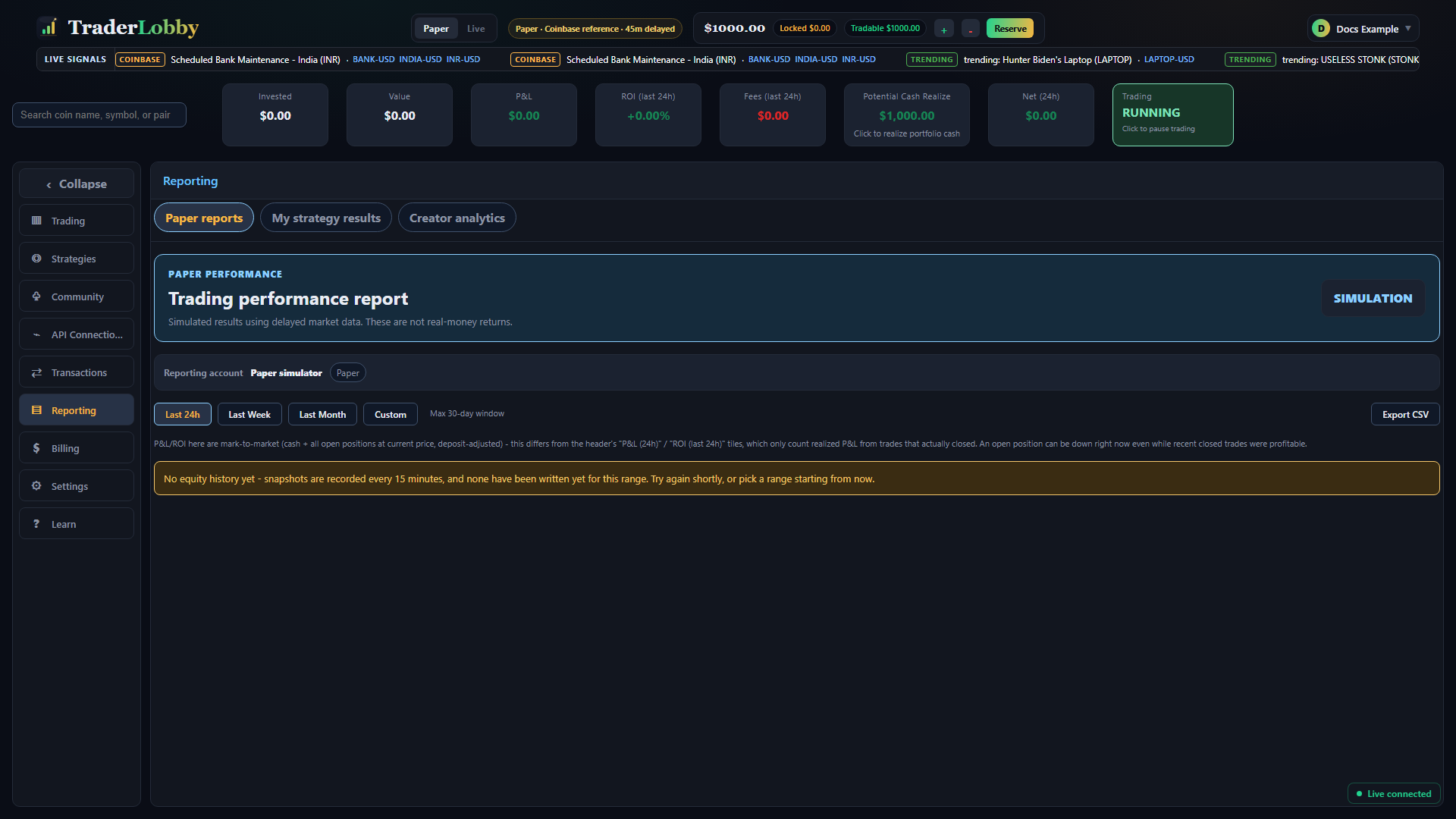
Keep open P&L, realized P&L, fees, net deposits or withdrawals, and market movement conceptually separate. A chart can summarize recorded results; it cannot turn an estimate or pending order into a fill.
Treat an uncertain outcome as unresolved—not failed
- Stop submitting.
Do not click again, reopen the same sale, or change quantity while the earlier result is unknown.
- Record non-secret context.
Keep the time, workspace, provider, symbol, intended quantity, and visible message. Never capture credentials.
- Check Transactions.
Look for a request, provider order identifier, accepted order, rejection, pending state, or fill near the recorded time.
- Check the exchange.
Review open orders, order history, fills, balances, and fees for the same symbol and time.
- Refresh account state once.
Synchronize Live data and allow the interface to reflect provider changes. Refreshing the view does not repeat an order.
- Act only on the verified remainder.
If part filled, calculate and review the remaining quantity. If no order exists, correct the known cause before beginning a fresh review.
Respond to common Live messages
| Message or symptom | What it usually means | Safe next action |
|---|---|---|
stale_executable_quote or executable_quote_required | The reviewed estimate is no longer current enough for submission. | Return to the position, request a fresh review, re-read price, proceeds, and quantity, then submit once. |
community_live_evaluation_failed | The Live safety evaluation did not approve the action. | Do not retry repeatedly. Verify connection, security, budget, strategy state, and Transactions; contact support with time, symbol, and the visible message if it persists. |
| Default exchange connection required | No eligible connection is selected for Live execution. | Open API Connections, validate the intended account, and make it the default Live account. |
| Account security incomplete | A required account-protection step is missing. | Complete the visible security requirement before returning to Live. |
| Insufficient balance or Tradable cash | The provider-reported funds or configured cash boundary cannot cover the action. | Review cash, reserve, pending orders, currency, and budget. Do not raise the limit merely to bypass the message. |
| Order permissions unavailable | The credential or provider check does not permit the requested order. | Review minimum provider permissions and run the no-order validation. Never enable withdrawals. |
| Minimum size or precision | The quantity does not satisfy that market’s supported order rules. | Review the allowed quantity and residual dust; do not round blindly. |
| Timeout or network interruption | The response was not observed, but the provider may still have received the request. | Treat it as uncertain and reconcile before retrying. |
| Some portfolio sales failed | Individual symbols produced different provider results. | Verify every symbol and act only on unresolved positions. |
| Sales completed but pause failed | The separate pause request did not complete after sale attempts. | Confirm positions first, then use the explicit Trading control and verify Paused. |
| Paused by circuit breaker | An account protection stopped automation. | Inspect the trigger and account state before resetting. |
Separate “stop automation” from “reduce exposure”
These are different goals and require different actions. If your priority is to prevent new automated decisions, pause the relevant strategy or the account-wide Trading control and verify the status. If your priority is to reduce or close holdings, review and submit the appropriate manual sale, then verify each exchange result.
- Pause new automation when needed.
Choose the smallest sufficient scope: one decision engine or the account-wide Trading control.
- Inspect open provider orders.
Use the exchange account to understand activity already accepted before the pause.
- Choose a sale scope.
Use a single-position sale for a specific asset or the portfolio flow only when you intend to attempt every eligible position.
- Verify every consequence.
Confirm fills, residual holdings, fees, cash, and the final automation state separately.
On smaller screens, follow labels—not coordinates
Live controls may move into compact sheets, stacked cards, expandable regions, or bottom navigation. The meanings do not change. Always read the visible mode, provider, account, symbol, amount, action label, warning, and resulting state rather than memorizing where a control appeared on a larger screen.
Give Support enough evidence without sharing secrets
When you need help, include your username, approximate time with time zone, Paper or Live, provider name, connection nickname, symbol, intended quantity or percentage, visible message, and what you found in Transactions and at the exchange. Crop or mask balances and identifiers that are not relevant.
Before you leave a Live session
- The selected provider account and Tradable cash match my intent.
- The account-wide Trading state is explicitly Running or Paused as intended.
- Each strategy’s Live decision-engine state, slots, and allocation are correct.
- No manual order has an unknown outcome.
- Accepted orders and fills in Transactions reconcile with the exchange.
- Residual positions, including dust, are understood.
- Fees and final cash are based on provider records rather than estimates.
- Any circuit-breaker, permission, security, or provider warning has been resolved or safely left paused.