
Your first 15 minutes
Take a guided Paper-mode tour, configure one strategy carefully, and learn how to tell what TraderLobby is doing.
Your first session should make TraderLobby feel understandable—not busy. In about 15 minutes, you will confirm that no real order can be sent, learn the main status areas, review one strategy, and practice following its activity from consideration to recordkeeping.
Before you begin
You do not need an exchange connection, an API key, crypto funds, or prior trading experience for this walkthrough. Keep the session in Paper from beginning to end.
- Use a device and browser where you can comfortably read the full workspace.
- Sign in to your own TraderLobby account; never practice with another person’s account.
- Close any exchange API-key page. This walkthrough does not need credentials.
- Allow enough time to read confirmation text instead of clicking through it.
- If your Paper preview has ended, you can still read this guide, but some interactive Paper actions may be unavailable.
The 15-minute route
This walkthrough follows the same order you will use later when supervising the product: confirm context, choose deliberately, set boundaries, observe behavior, and verify records.
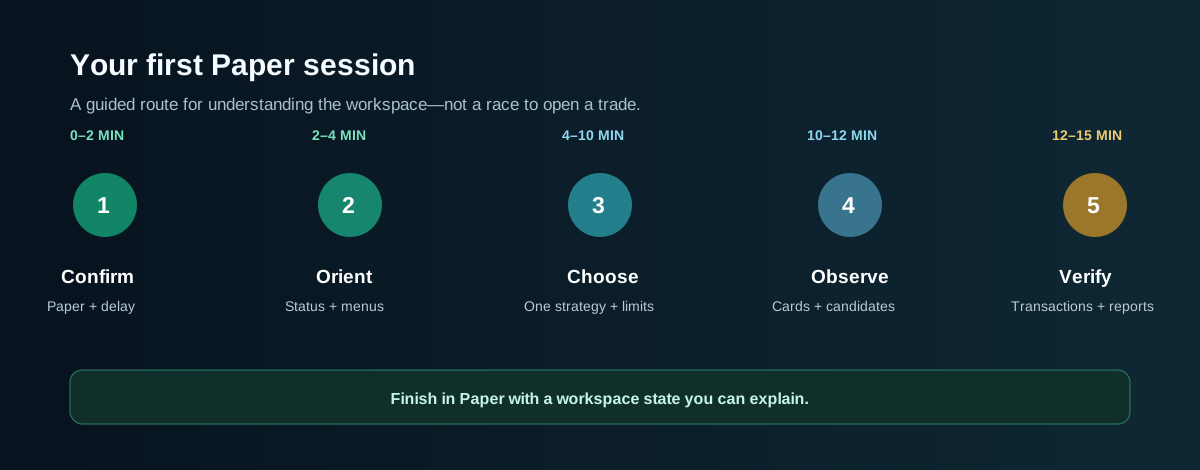
Minutes 0–2: confirm you are in Paper
Begin at the top of the application. Select Paper if it is not already selected. Then look for the Paper reference notice. In the current application it reads Paper · Coinbase reference · 45m delayed.
| Check | What you should see | Why it matters |
|---|---|---|
| Mode selector | Paper is visibly selected; Live is not selected | This is the clearest boundary between simulation and real execution. |
| Reference notice | A Paper label and the disclosed delay | It reminds you that displayed Paper prices are not current exchange quotes. |
| Trading state | A visible state such as RUNNING or PAUSED when your account may access that control | It describes automation state for the selected workspace; it does not change Paper into Live. |
| Account summary | Paper values for invested amount, value, P&L, fees, and cash context | Paper and Live maintain separate context. A blank or zero value can simply mean there is no Paper activity yet. |
If the app is opening a workspace, wait for the transition to finish before comparing numbers. Do not assume that a briefly blank metric represents a loss or missing balance.
Minutes 2–4: orient yourself
Use the workspace as a map. You are not trying to memorize every menu. You are learning where to answer four recurring questions:
- What context am I viewing? Paper or Live, account values, and trading state.
- What is allowed to make decisions? Strategy cards and their enabled or disabled state.
- What is being considered or held? Eligible candidates, coin universe, and positions.
- What happened? Recent fills, Transactions, and Reporting.
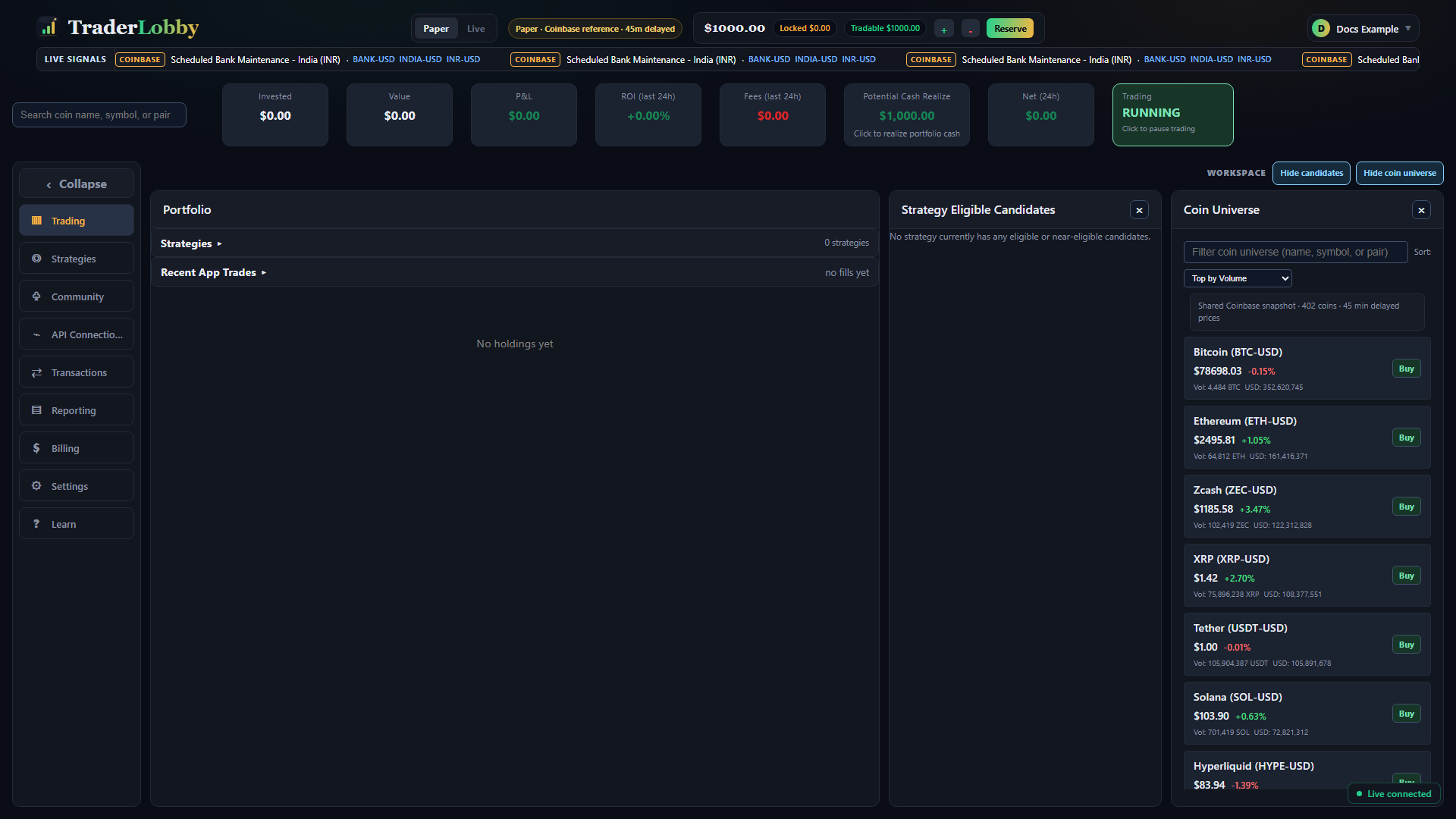
On a smaller screen, the same jobs may be grouped behind a menu or presented as compact views. Labels and outcomes remain more important than their exact position.
Minutes 4–7: review one strategy
Open Strategies. The purpose of this step is to practice reading a strategy before giving it a place in your Paper workspace.
- Choose one strategy to inspect
Starting with one keeps attribution easy to follow. You can compare more later.
- Read its purpose and source
Understand what kind of market behavior it is designed to evaluate and whether it is a TraderLobby Original or an eligible community publication.
- Separate evidence from a promise
Historical, Lab, Paper, and Live evidence describe different samples. None guarantees what happens next. Consider the number of completed trades as well as a percentage.
- Check access and price
A strategy may require a subscription, may be part of your library, or may be unavailable in a mode. Subscription access and trading activity are separate decisions.
- Review recommended slots
Slots limit simultaneous holdings for that strategy. More slots can spread capital across more positions; they do not create more cash or guarantee more opportunities.
- Select or add it to Paper
Use the Paper control shown for that strategy. If it already says Paper selected, open its Paper settings instead of adding it again.
Minutes 7–10: understand the Paper settings
Open the selected strategy’s Paper settings. The current settings dialog groups three important decisions. For this first session, understand them before you customize them.
| Control | What it changes | What it does not do |
|---|---|---|
| Decision engine | Allows or prevents the strategy from opening new positions in that mode | Disabling it does not automatically sell or erase an existing position. |
| Position slots | Sets the maximum concurrent holdings assigned to that strategy | It does not reserve a fixed list of coins or guarantee every slot will be used. |
| Capital allocation | Chooses the strategy default, a fixed entry amount, or an eligible percentage-based method when available | It cannot bypass available cash, the account budget, provider rules, or market minimums. |
| Preferred minimum entry | Expresses the smallest intended entry when that allocation method is available | It does not force an entry when cash or other conditions do not qualify. |
| Use remaining eligible cash | Allows a qualifying remainder to be considered when the normal amount cannot be met | It still cannot bypass the displayed minimum and eligibility rules. |
Keep the strategy default unless you already understand why you need a different allocation. If you change a value, use Save strategy settings and wait for the success result. Use Cancel when you only wanted to inspect.
Minutes 10–12: observe the Trading workspace
Return to Trading. Find the strategy card you selected. Its card connects configuration to activity.
| What you see | How to read it |
|---|---|
| Used: 0 / 3 | The strategy currently has no slots counted as used out of a maximum of three. This is not an error and does not mean the strategy is disabled. |
| Used: 1 / 3 | One slot is currently attributed or reserved. Inspect positions, recent activity, and Transactions to understand why. |
| Enabled or Disabled | Whether the decision engine may open new positions in this mode. Existing-position management can be a separate state. |
| Eligible candidates | Assets that have passed some current checks. A candidate is not an order and may remain in a waiting state. |
| Position row with strategy badge | A simulated holding attributed to the strategy that opened it. Read quantity, basis, value, P&L, and status together. |
| No candidates or positions | A valid observation. Market, timing, cash, ownership, slot, or strategy conditions may not currently qualify. |
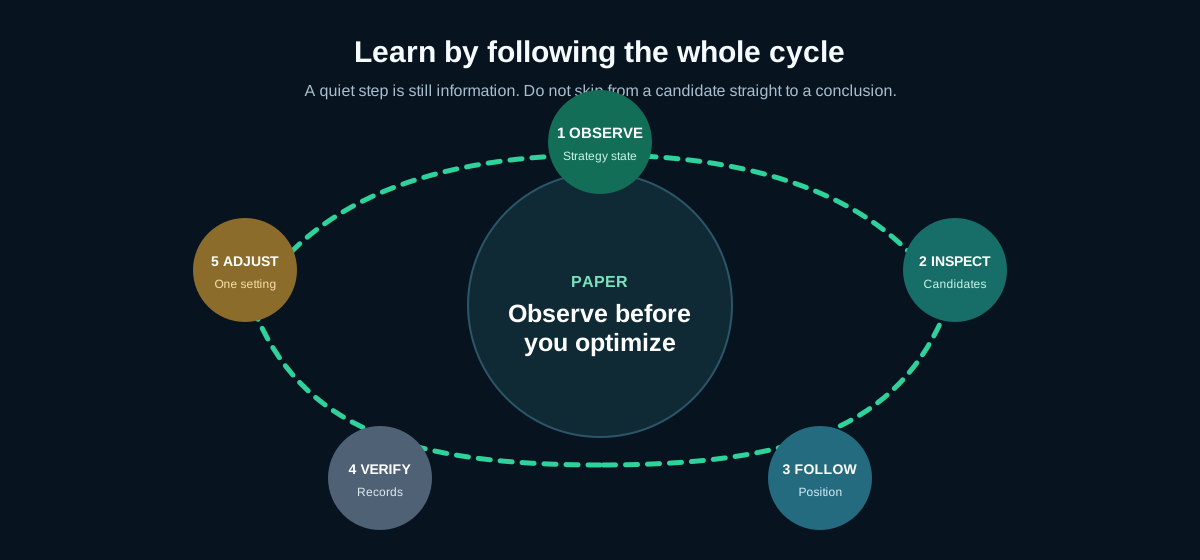
Minutes 12–14: connect activity to records
Open Transactions. This area answers what happened? It is where you connect a simulated order or fill to its symbol, side, strategy, quantity, price, fee context, time, and status.
Then open Reporting. This area answers how did the activity add up during a selected period? It helps you look beyond a single green or red position. A short period can be dominated by one move, and a period with too little history may not support a meaningful conclusion.
| Question | Best place to start |
|---|---|
| Did the strategy request or record an entry or exit? | Transactions |
| Was it filled, rejected, pending, or otherwise unresolved? | Transactions and the visible status detail |
| What fees or fill information were recorded? | Transactions |
| How did the Paper workspace change over a period? | Reporting |
| How did one strategy contribute to the selected view? | Strategy results or the relevant Reporting view |
| Why does Paper differ from Lab or Live? | Paper and Live guide, evidence disclosure, and the applicable report context |
Minutes 14–15: finish with a known state
End the session by making sure you understand what remains enabled. You do not need to remove the Paper strategy just because the walkthrough is finished.
- Confirm you are still viewing Paper.
- Know whether the selected strategy’s Paper decision engine is enabled or disabled.
- Know how many slots are used and where to investigate a used slot.
- Know where Transactions and Reporting are located.
- Know that switching pages or closing the browser does not necessarily change an enabled strategy setting.
- Leave Live unselected and do not create an API credential as part of this walkthrough.
When nothing happens
Automated trading includes waiting. During a 15-minute walkthrough, it is entirely possible to see no candidate, order, fill, or position. Use the absence of activity to practice checking state instead of trying to manufacture a result.
- Confirm the strategy is in Paper
The strategy page should show Paper selected or configured.
- Confirm the decision engine state
Disabled means no new Paper positions should open.
- Check used slots
A full slot count can prevent another concurrent position.
- Read the candidate area
A waiting candidate has not yet become an order.
- Check Transactions
No transaction supports the conclusion that no simulated order was recorded.
- Observe over time
Return later and compare behavior across more than one market condition before changing several settings.
Common first-session mistakes
| Mistake | Why it causes confusion | Better approach |
|---|---|---|
| Selecting Live to “see more current numbers” | Live is a different workspace and can become consequential when requirements are satisfied | Remain in Paper and accept the disclosed delay for this walkthrough. |
| Adding several strategies at once | Candidates, positions, and capital competition become harder to attribute | Begin with one strategy and learn its card and records. |
| Changing slots and allocation immediately | You lose the baseline needed to understand the default behavior | Observe the default first; change one setting at a time later. |
| Treating a candidate as a purchase | Candidates can remain waiting or disappear without an entry | Look for an actual order or fill in Transactions and a position in Trading. |
| Judging a strategy from one return figure | Different evidence sources, periods, and sample sizes are not directly interchangeable | Read purpose, source, closed-trade count, limitations, and time context. |
| Assuming Disabled or Remove sold a holding | Decision participation and position liquidation are distinct actions | Read the confirmation and inspect positions after any change. |
| Refreshing repeatedly during a transition | A changing workspace can temporarily show neutral values while current data loads | Wait for the transition, then refresh once only if the state remains stale. |
You are ready for the next guide when…
- You can identify Paper or Live before taking an action.
- You can explain why Paper prices and fills are not current executable exchange results.
- You can find one strategy’s purpose, evidence, Paper status, slots, and decision-engine state.
- You understand that candidates, orders, fills, and positions are different stages.
- You can use Trading, Transactions, and Reporting to answer different questions.
- You know the difference between disabling, removing, and selling.
- You can leave the workspace in a state you understand.