
App tour
Learn the persistent controls, every main menu, and the quickest route from a question to a verifiable answer.
TraderLobby is organized around a simple idea: keep your current trading context visible, give each customer task a clear destination, and leave an activity trail you can verify. This tour explains the whole customer workspace so you can move with purpose instead of clicking until something looks familiar.
The workspace in one view
Most signed-in pages keep the same three-part frame. The top context area tells you which workspace and account state you are looking at. The main navigation moves between customer jobs. The active page contains the details and actions for one job.
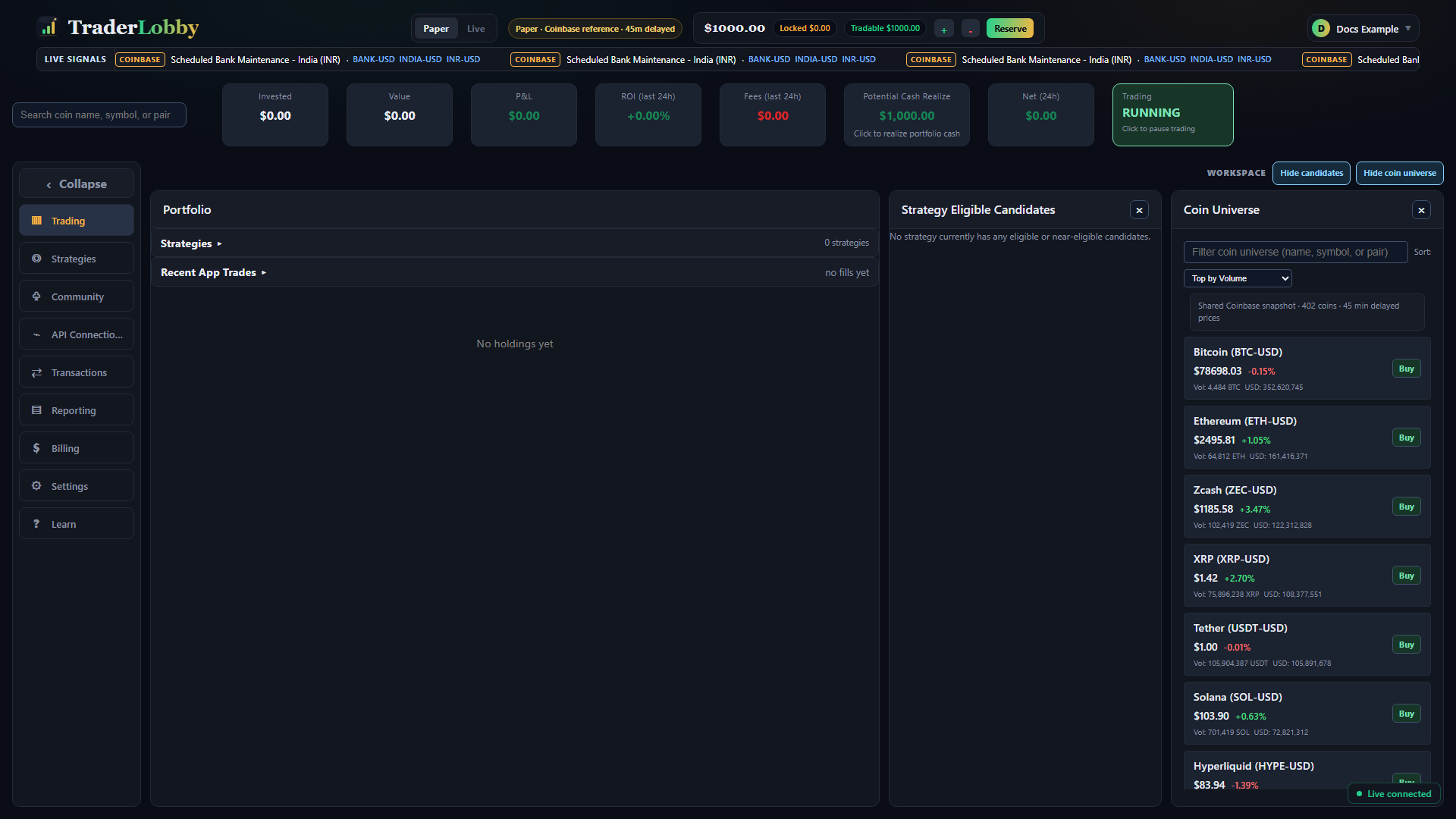
| Layer | Question it answers | Examples |
|---|---|---|
| Persistent context | Where am I, and what state is the account in? | Paper or Live, market-source notice, cash context, portfolio summary, trading state, account menu, and Live Signals. |
| Main navigation | What job do I want to do? | Trading, Strategies, Community, API Connections, Transactions, Reporting, Billing, Settings, and Learn. |
| Active page | What can I inspect or change here? | Tables, cards, filters, configuration controls, confirmations, status messages, and links to the next relevant task. |
Read the persistent header before the page
The header is your orientation strip. Before you change a strategy, interpret a balance, or place a supported manual order, read it from left to right.
- Confirm the TraderLobby account
The account button shows the signed-in identity. Use its menu for theme, language, sign-out, and any role-gated destination available to your account.
- Confirm Paper or Live
The selected mode controls which workspace data and strategy settings you are viewing. Paper is simulated. Live can affect real funds when all gates pass.
- Read the market-source notice
In Paper, the current notice identifies the delayed Coinbase reference. In Live, the notice identifies the selected provider and can take you toward API Connections.
- Read cash and reserve context
The balance area distinguishes money available for supported use from money locked, reserved, or outside the current trading budget. A limit is a ceiling, not a target.
- Notice warnings before continuing
Trial, connection, account-security, provider, and order-readiness messages explain why a control is unavailable or what must be confirmed next.
- Use Live Signals as context only
The ticker summarizes market observations. A trending label or price movement is not an instruction, promise, or substitute for reviewing a strategy.
| Header control | What it changes | What it does not change |
|---|---|---|
| Paper / Live selector | The workspace, balances, strategy preferences, positions, and records being requested | It does not silently copy settings or simulated results between modes. |
| Market-source notice | In Live, it can lead to the connected-provider controls | It does not change a provider merely because you view the notice. |
| Cash controls and Reserve | Eligible controls can change how provider-reported cash is divided by the customer budget and reserve settings | They do not deposit, withdraw, or transfer funds. |
| Trading status | The visible status shows whether supported automation is running or paused for the selected context | It does not mean every strategy currently has a candidate or open position. |
| Account menu | Theme, language, account actions, and sign-out | Changing appearance or language does not change trading state. |
Understand the account summary cards
The summary is a compact starting point, not a complete statement. Read the cards together and then use Transactions, Reporting, or your exchange when you need evidence behind a number.
| Card or status | Plain-language reading | Where to investigate |
|---|---|---|
| Invested | Recorded cost basis or invested amount for app-attributed positions in the selected workspace | Trading positions and Transactions. |
| Value | Estimated current value of those positions | Trading positions; for Live, compare with the exchange. |
| P&L | Difference represented by the current view, subject to its basis and fee treatment | Reporting for the selected period and Transactions for fills and fees. |
| ROI (last 24h) | A period-based percentage for the displayed workspace when enough data exists | Reporting for methodology, range, and context. |
| Fees (last 24h) | Fees attributed to recorded activity in the displayed period | Transactions and the provider’s final records. |
| Potential Cash Realize | An estimate of cash that could result from selling supported positions | Open its explanation; do not treat an estimate as guaranteed proceeds. |
| Net (24h) | A summarized period result based on the app’s displayed calculation | Reporting and the underlying transactions. |
| Trading RUNNING / PAUSED | Whether the global automation control is active for the relevant workspace | Strategy cards and warnings for more specific state. |
The main navigation: one menu, one primary question
Each menu has a primary job. The visual compass below starts with the question in your head and points to the best first destination.
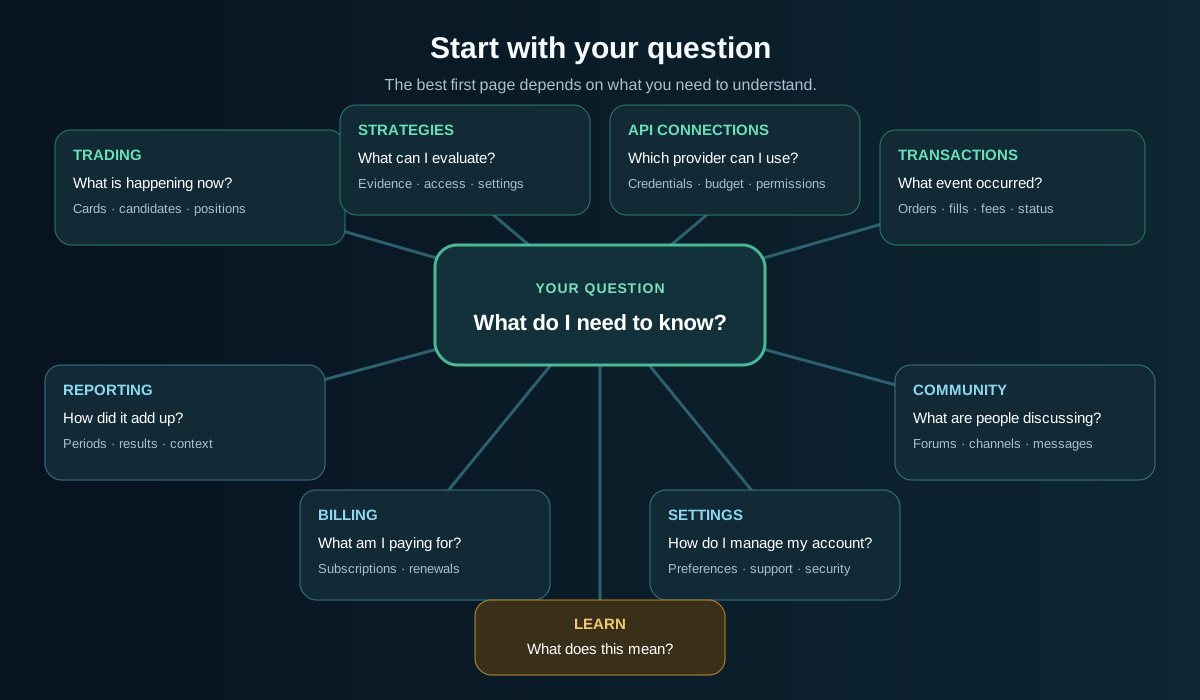
| Menu | Start here when you are asking… | Typical things you can do |
|---|---|---|
| Trading | “What is happening right now?” | Read strategy cards, used slots, candidates, coin-universe context, positions, recent fills, exit alerts, portfolio controls, and supported manual-sale actions. |
| Strategies | “What can I use, and how is it configured?” | Discover strategies, read purpose and evidence, distinguish TraderLobby Originals from eligible community listings, manage access, and configure Paper or Live participation. |
| Community | “What are people discussing?” | Use permitted feeds, forums, channels, messages, profiles, people search, saved posts, references, reactions, reports, and moderation-aware publishing. |
| API Connections | “Which exchange account can TraderLobby read or use?” | Add a supported provider, validate credentials, read balances, set trading currency and maximum cash, validate order permissions, and choose the default Live account. |
| Transactions | “What order, fill, fee, or provider result was recorded?” | Inspect activity as a list or graph and filter by the current Paper or Live context. |
| Reporting | “How did activity add up over time?” | Choose a period and interpret portfolio, strategy, realized, unrealized, and fee-aware results available to your account. |
| Billing | “What am I subscribed to or paying for?” | Review strategy subscriptions, renewal state, cancellation choices, charges, and eligible creator billing or payout tools. |
| Settings | “How do I change my preferences, security, support, or account?” | Choose theme and language, hide dust, contact support, manage password, verification, MFA, passkeys, sessions, and advanced account actions. |
| Learn | “What does this term or part of the product mean?” | Follow Basics, Medium, Pro, How This App Works, and Play experiences; resume supported lesson progress. |
Trading: your operational workspace
Trading is the closest thing to a dashboard, but it is not only a collection of numbers. It joins each strategy’s current participation with what is being considered, what is already held, and what has recently changed.
| Region | Read it as | Important distinction |
|---|---|---|
| Strategy cards | A compact view of enabled state, used position slots, and attributable results | Enabled does not mean a trade must occur; used slots and open positions require separate inspection. |
| Eligible candidates | Assets that passed some current strategy checks | A candidate is not an order and may never become a position. |
| Coin universe | Markets currently available for supported consideration | Visibility does not mean every strategy is evaluating or eligible to trade every asset. |
| Positions | App-attributed holdings with quantity, basis, value, P&L, peak, and strategy context where available | For Live, your exchange is the authoritative holding and execution record. |
| Recent fills | Recently recorded executions | A request and a fill are different; one order may fill partially or more than once. |
| Exit proximity | Context about how close a supported position may be to a displayed exit condition | It is an observation, not a guarantee of when or at what price an exit will execute. |
| Panel controls | Show or hide candidates and coin universe; collapse navigation or supporting areas | Hiding a panel changes presentation, not automation or eligibility. |
Use the global asset search to narrow coin names, symbols, or pairs across supported views. Clear the search before concluding an item is missing. A hidden dust position, search term, collapsed panel, or different mode can all change what is visible without changing the underlying record.
Open the focused Trading workspace guide →
Strategies: discovery, evidence, and configuration
Strategies is where you decide what deserves further evaluation. Read the full detail page before selecting a mode. Purpose, evidence source, observation period, closed-trade count, price, access, recommended slots, and availability each answer a different question.
- Discover or search
Browse what is available to your account and use the search term to narrow the catalog.
- Open the detail page
Read what the strategy is designed to observe, its customer-visible evidence, access terms, and disclosures.
- Choose Paper or Live deliberately
Each mode has its own eligibility and settings. A Paper selection is not permission for Live.
- Configure boundaries
Review the decision engine, position slots, capital allocation, preferred minimum, and eligible remaining-cash behavior.
- Save and verify
Wait for a success result, then find the strategy card in Trading for that same mode.
- Remove with care
Disabling new decisions, removing a strategy, canceling a subscription, and selling a position are separate actions. Read every confirmation.
API Connections: provider access and capital boundaries
This page connects TraderLobby to an exchange account you own. It never needs withdrawal access. A connection can be valid for balances while Live order submission remains unavailable until a separate permission and safety gate passes.
| Card area | What it tells you |
|---|---|
| Provider and credential status | Which supported exchange product the credential belongs to and whether connectivity validation passed. |
| API-reported cash | Cash or quote-currency value returned by the provider. |
| Trading budget | The customer-selected maximum cash TraderLobby may use; it is not a deposit. |
| Project reserve | Cash outside the current app trading budget or otherwise reserved. |
| Tradable cash | The currently eligible amount after relevant provider balance and customer controls. |
| Trading currency | The quote currency used for supported orders; no hidden conversion is implied. |
| Validate order permissions | A separate signed check that confirms supported trading access without placing an order. |
| Use for Live account view | Selects a valid eligible connection as the default Live context. |
| Refresh balance / Save capital controls / Remove | Explicit actions with separate outcomes; removing a connection does not sell exchange holdings. |
Read the safe exchange-connection guide →
Transactions and Reporting answer different questions
Use Transactions for event-level evidence and Reporting for period-level interpretation. Moving between them prevents a common mistake: trying to explain an entire period from one fill, or trying to verify one order from an aggregate chart.
| Question | Best first destination | Then verify with |
|---|---|---|
| Was an order requested, rejected, accepted, or filled? | Transactions | The provider for final Live status. |
| What quantity, price, side, strategy, and fee were recorded? | Transactions | Fill detail and the provider. |
| How did the portfolio change over a selected period? | Reporting | The underlying transactions and positions. |
| How did one strategy contribute? | Reporting or strategy results | Transactions for the specific events. |
| Why does an estimate differ from final proceeds? | Transactions | Provider fills, fees, spread, and timing. |
| Why does Paper differ from Live or Lab? | Reporting | The Paper/Live and evidence disclosures. |
Transactions currently offers List and Graph views. A graph makes sequence and concentration easier to see; the list remains the better place to inspect exact records.
Community, Billing, Settings, and Learn
These destinations support the trading workflow without being trading controls themselves.
| Destination | Use it well | Do not assume |
|---|---|---|
| Community | Discuss permitted topics, follow people, save posts, use channels or messages, and report unsafe content. Keep account and credential information private. | A popular post, rating, reaction, or member statement is verified financial advice. |
| Billing | Review subscriptions, renewal or cancellation state, historical charges, and eligible creator tools. | Canceling access automatically sells positions, removes a strategy safely, or reverses completed market activity. |
| Settings · Preferences | Change Auto, Light, or Dark theme; English or Spanish; and presentation options such as hiding dust. | Hiding dust changes balances, totals, ownership, or automation. |
| Settings · Support | Create a support request with the page, mode, provider, time, action, and exact non-secret error. | Support needs your password, API secret, private key, passkey, or verification code. |
| Settings · Security | Manage email verification, password, MFA, passkeys, sessions, and security activity available to your account. | Closing a browser signs out every other device or revokes provider credentials. |
| Settings · Advanced | Review consequential account actions and their explanations carefully. | Account deletion is immediate or automatically resolves subscriptions, positions, financial records, or legal retention. |
| Learn | Build vocabulary and product understanding through progressive lessons and Play. | Educational content predicts markets or recommends a trade. |
How the app tells you what happened
A click is only the beginning of an action. Look for the result state before clicking again or navigating away.
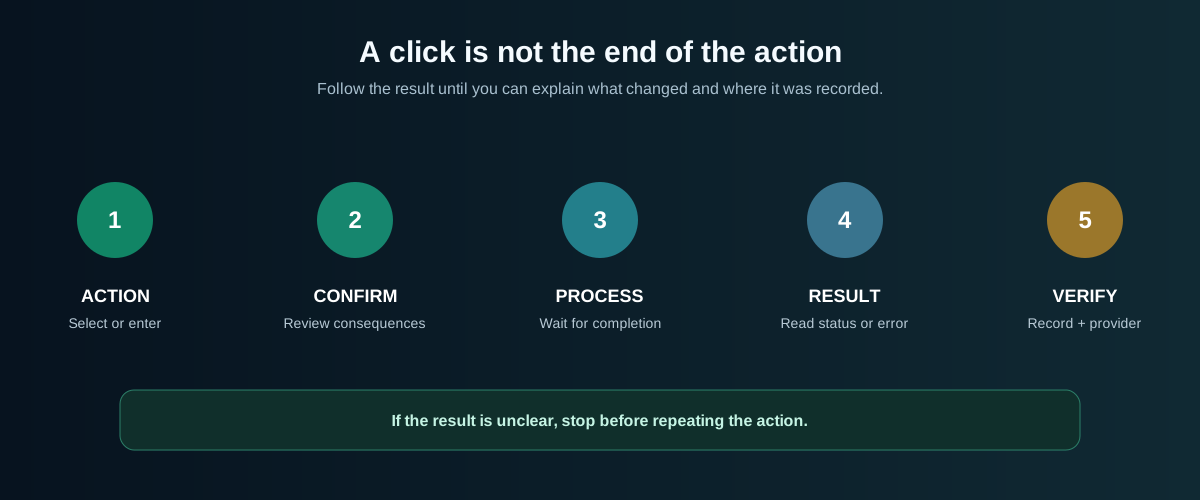
| State | What it usually means | Best response |
|---|---|---|
| Loading or opening workspace | Current context is changing or data is being requested | Wait for the transition to finish before interpreting temporary zeros or empty areas. |
| Empty state | No matching, visible, or qualifying records were returned | Check mode, filters, search, date range, collapsed panels, and eligibility. |
| Confirmation | The action has consequences or needs a final review | Read mode, provider, symbol, amount, and effect; use Back or Cancel if anything is unclear. |
| Success message | The app accepted and recorded the requested change | Verify the affected card, record, or provider result instead of relying only on the message. |
| Warning or gate | A prerequisite, risk, or limitation needs attention | Follow the named safe action; do not bypass permissions or increase a budget just to remove a warning. |
| Error message | The requested action did not complete as expected | Record the exact non-secret message, avoid repeated submissions, and use Troubleshooting. |
| Connection indicator | The browser currently has or lacks its live update channel | A green indicator does not prove that every provider request or order succeeded. |
Desktop and mobile organize the same jobs differently
On desktop, the main navigation appears as a left rail that can collapse to icons. Supporting Trading panels can also be shown, hidden, or collapsed. On mobile, destinations open in compact views or sheets and important actions may move to the bottom of the screen.
| When the layout changes | What stays the same |
|---|---|
| The sidebar collapses | The active destination, mode, and underlying account state do not change. |
| A settings form opens as a sheet | Decision engine, slots, allocation, save, remove, and close still have distinct meanings. |
| Tables become cards or scroll horizontally | Labels and values still represent the same records; inspect the full item before acting. |
| Supporting panels are hidden | Eligibility and positions continue to exist; only their presentation changes. |
| The browser is closed | Saved strategy or automation state may continue; closing the page is not a pause command. |
Common journeys across the app
Real tasks often cross several menus. These routes show why each move is useful.
| What you want to do | Recommended route | Evidence that you are finished |
|---|---|---|
| Learn one strategy safely | Strategies → Paper settings → Trading → Transactions → Reporting | You can explain its settings, current state, any activity, and period context. |
| Prepare an exchange for Live | Settings · Security → API Connections → order-permission validation → select default Live account → Live readiness | Security, credential, provider, budget, and readiness gates show the expected state. |
| Investigate a missing position | Confirm mode → clear asset search → show relevant panels → Trading positions → Transactions → provider | You identify whether it is filtered, closed, pending, unattributed, or different at the provider. |
| Understand a surprising P&L value | Confirm mode and period → Reporting → Transactions → position basis → provider for Live | The period, basis, fills, fees, and authoritative provider record reconcile or reveal the difference. |
| Stop new entries from one strategy | Trading card → strategy settings → disable decision engine → save → verify card | The strategy shows disabled for new decisions in the intended mode; existing positions were separately reviewed. |
| Pause during uncertainty | Use the visible global Trading control → verify PAUSED → inspect warnings and activity | The pause state is visible and you understand what remains open or managed. |
| Ask for help | Troubleshooting → Settings · Support | The request includes page, mode, provider, time, steps, and exact non-secret error. |
Navigation habits that prevent mistakes
- Confirm Paper or Live before interpreting numbers or opening a consequential control.
- Let workspace transitions finish before deciding that a value is zero or missing.
- Clear global search, filters, and date ranges when an expected record is absent.
- Use the page that answers your current question; use Transactions for events and Reporting for periods.
- Read confirmations all the way through. Disable, remove, cancel, pause, and sell are not synonyms.
- Verify Live balances, accepted orders, fills, and fees in the connected exchange.
- Never treat closing the page, switching modes, hiding a panel, or hiding dust as a trading action.
- Keep credentials and private account information out of Community and support messages.
You are ready to continue when…
- You can identify the selected account, Paper or Live workspace, market source, and trading state.
- You know which menu answers “what is happening?”, “what happened?”, and “how did it add up?”.
- You can explain the difference between a strategy, candidate, order, fill, and position.
- You know where provider access, budget, reserve, tradable cash, and order permissions are managed.
- You recognize loading, empty, confirmation, success, warning, and error states.
- You know that presentation changes do not pause automation or alter provider holdings.
- You can reach Settings for preferences, support, and account security without exposing a secret.